Categories
News and Events Smart Home Tech

Adventures in Assistive Technology: Creating our Smart Home

Written by Vicki Kowaleski

My husband and I recently purchased a ‘new to us’ home. In addition to remodeling the home to incorporate ramps, a bathroom with a roll-in shower, a handheld shower head and wider doorways into the bathroom and closet with barn doors for easier entry, I decided to explore a number of assistive technology devices. I was injured in a diving accident 35 years ago, resulting in paralysis from my chest to my toes, impacting my arm strength and hand dexterity. I use a power wheelchair for mobility, so I am all about finding assistive devices to help me manage everyday living.

The first thing we did was to enlist the help of ADT alarm services. They installed an alarm panel that is all touch screen. I downloaded the ADT app so I am able to operate the alarm from my phone. They also installed an interior as well as exterior cameras which are also accessed through the app. Finally, the package included door sensors and the new Ring doorbell camera. This way I can tell which door is opened and when, receiving alerts when the cameras pick up motion inside the home, as well as outside in the backyard where we have a pool. I can see who is at the door by looking at my cell phone or our Alexa devices. I feel safer now that I can operate the alarm system either from my phone or from the panel for now. We can purchase a key fob as well, which will help my husband since he isn’t fond of technology and still struggles with his phone.

Echo Show 8 on counter next to plantsRegarding Echo devices, we have an Echo Show 8 on our kitchen counter. From getting recipes, checking the calendar, asking for weather reports, watching movies, listening to music…the list is endless with this device! We have a smaller Echo dot in our bedroom that we use for our alarm, to play Sleep Sounds and listen to music and audiobooks. I am still learning all of the skills that Alexa enabled devices can learn.


We replaced two ceiling fans in the living room with Modern Forms fans that are Wi-Fi compatible and equipped with Bluetooth. I can operate them using their remotes, my cell phone and yes… Alexa! We liked them so much that we bought one for our master bedroom as well. No more searching for the remotes; we just use our phones or Alexa.

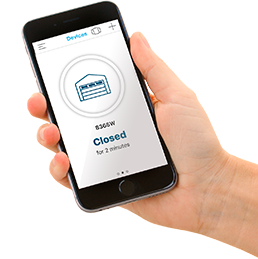
One surprise that came with the house was in the garage. The previous owner had installed a Chamberlain garage door opener with myQ technology. I was able to pair the garage door opener with my iPhone using the myQ app. This is extremely helpful paired with the Ring camera device for when we drive away from the house and wonder “did I remember to close the garage door?” I am able to open and close the garage door from anywhere using my phone. It can also be programmed to open or close at set times.MyQ app on smartphone showing Garage Closed

As an Amazon Prime member, I can get our Amazon packages delivered inside our garage with Key by Amazon. It was free! I have not used that device yet but with the winter coming, it will be very convenient. A keyless entry pad will be installed on the outside of the garage, allowing us to assign codes to allow family to get into the garage if we are not around.

For ease of entry into the house, we installed a keyless entry lock on the interior garage door. No fumbling with keys, just touch the keypad to enter a code.

Inside the house, all of the light switches are rocker switches that are easy to operate. We purchased Smart lightbulbs by TreatLife. These are compatible with Alexa and Google assistant. I like to use them in bedside lamps so all I have to do is say “Alexa, turn off my lamp.” These lightbulbs can be put on a schedule to turn on or off, and they are dimmable!

For our home thermostat, we had a Honeywell Wi-Fi smart color thermostat installed. It is programmable, has a nice touchscreen and is Alexa compatible. I downloaded the Honeywell app to be able to adjust the thermostat from anywhere using my iPhone. We can set schedules for when we are home and away. It’s very convenient on those cold mornings: just grab the phone off of the nightstand and turn up the heat.

We plan to purchase smart plugs for our bookcase lights and any other lights that are plugged in that can’t use smart bulbs, such as my makeup mirror, which has a knob that is impossible for me to turn. Another planned purchase is outdoor lighting that we can schedule to turn on and off. So far, our Internet provider seems able to keep up with our needs for strong wi-fi service.

As far as financing these kinds of purchases, look for deals through Amazon, Best Buy and similar stores. Our families give us gift cards for our birthdays and holidays. I am always looking for the best deals and prices.

And for now, if the power goes out we will use our portable generator as our back up plan. Eventually we hope to install a permanent, automatic generator to keep all of our smart devices connected and working.


Categories
General News and Events

Using AT for Everyday Tasks

Written by Stacey B. Fulton, OTR/L, ATP, CAPS & Carlie Clayton, OTR/L

EASTCONN’s Assistive Technology Department teamed up with EASTCONN’s EXCELS program for an all-inclusive Thanksgiving activity! Our team included students, related services (OT/Speech) and a paraprofessional working together with assistive technology to make it possible to create a yummy Thanksgiving treat. In order to make pumpkin pie in a cup, two students were given a guided recipe book on an iPad with auditory and visual support to increase independence. Another student utilized a switch to activate a blender to crush graham crackers to make the “crust.” These tools enabled the students to make a delicious treat for themselves and their classmates with greater independence. The use of assistive technology can make for a more inclusive holiday and provide increased independence for people of all abilities!

https://www.facebook.com/wherelearningcomestolife/videos/1011585019698137/

Students working on individual recipes using their Assistive Technology   Student follows the recipe sequence one page at a time by listening to the directions read and following the visual steps.  Student uses a switch and Powerlink to turn the blender on to crush the Graham crackers.


Categories
News and Events Resource

How Assistive Technology Can Support Those Experiencing “Long COVID”

Reposted from IL_NET TA, National Technical Assistance Center for Independent Living

What Are “Post-COVID Conditions (Long COVID)?”

According to the CDC, post-COVID conditions are “a wide range of new, returning, or ongoing health problems people can experience four or more weeks after first being infected with the virus that causes COVID-19.” Often referred to as “long COVID,” the scientific name is “Post-Acute Sequelae of SARS-CoV-2 infection (PASC),” and may also be referenced as “long-haul COVID,” “post-acute COVID,” “long-term effects of COVID,” and “chronic COVID.” People who experience long COVID may have had severe, mild, or asymptomatic COVID-19 in the days or weeks after their initial infection with the virus. New research (not yet peer-reviewed) suggests persons with breakthrough infections who were fully vaccinated and under age 60 may be protected from long COVID, but those over age 60 are not. Long COVID presents as different health problems and combinations of symptoms within a wide range of severity. Common symptoms are extreme fatigue, shortness of breath, problems with cognition, and a racing heartbeat. Neurological symptoms appear to be the most enduring; many long COVID patients report problems with memory and “brain fog.” Children, as well as adults, may experience long COVID. Some studies suggest more women than men may acquire long COVID. (Read some experiences of people living with long COVID.)

In February of 2021, the NIH announced a new initiative to study long COVID. Among the questions the initiative seeks to answer is, “Does SARS-CoV-2 infection trigger changes in the body that increase the risk of other conditions, such as chronic heart or brain disorders?” As of July 2021, long COVID can be considered a disability under the Americans with Disabilities Act (ADA), Section 504, and Section 1557 if the condition substantially limits one or more major life activities.

The Unique Role of AT Act Programs Persons with long COVID may be experiencing disability for the first time in their lives. The national field of State and Territory Assistive Technology (AT) Act Programs has spent decades committed to serving individuals of all ages with all kinds of disabilities (and combinations of disabilities) wherever they live, learn, work, and play. AT Act Programs uniquely understand and respond to the needs of adults and children that arise from temporary and long-term disabilities. AT Act Programs provide a stigma-free environment for persons with disabilities (and those who serve or love them) to learn about, try out, and acquire the assistive technologies that maintain or improve independence. As we learn more about how to treat long COVID, those experiencing long-term effects from COVID-19 can benefit from the AT services millions of people have sought for staying in or getting back into their lives.

For example, AT Act Programs provide access to:

AT for Fatigue and Mobility:
• equipment for bathroom safety
• transport wheelchairs and rollators for reduced stamina and stability
• gadgets for completing daily living tasks with reduced dexterity (from joint and muscle pain) AT for Memory and Cognition:
• an understanding of built-in features of iOS and Android operating systems and apps common to smartphones
• loans of tablet computers with apps for accomplishing tasks and goals identified by the borrower
• smart pens for keeping up with meetings (or productivity apps that sync to audio recordings)
• low-tech solutions and strategies for remembering medications and other essentials
• smart speakers and how to use them to support cognition AT for Social Isolation and Telehealth:
• loans of tablet computers and laptops for video conferencing, social media, email, and recreation
• Echo Show and similar technologies
• simplified connected devices for memory impairment
• alternative computer access
• assistive listening devices

AT for Work:
• alternative workstations and workstation adaptations
• strategies and technologies for improving stamina at work
• information and referral for rehabilitation services and a deep knowledge of cross-disability services as a point of entry for those newly disabled

AT Act Programs provide free demonstrations of assistive technologies in an environment that is without pressure to choose any particular product. The programs additionally provide free or low-cost short-term loans of devices to fill a temporary need or to trial before deciding to purchase, as well as counseling on funding options. AT Act Programs are staffed by professionals who may be AT users themselves and who can link visitors to additional services as necessary or help problem-solve the needs of others in their lives (clients, family members, students). AT Act Programs are the only service network that provides this kind of solutions-driven, cross-disability, multi-age, assistive technology support for maintaining the independence of persons living with long COVID in the pandemic and post-pandemic world.

Find Your State or Territory AT Act Program


Categories
ICT Accessibility News and Events

Digital Accessibility Tip! Hashtags, Email Addresses and Usernames

Written by Adam Kosakowski, M.Ed., ATP

A hashtag is a metadata tool used to easily compile and cross reference digital content on the web. Hashtags also make it possible for posters to share a love of cats on social media with bigger audiences. Email addresses and usernames are, well, mostly used to receive junk mail and messages from people in high school you don’t want to reconnect with. Still, what do they all have in common, and what does that have to do with digital accessibility?

They all use words with no spaces between them! Today’s tip will focus on how you can type hashtags, email addresses, and usernames in the most accessible way possible.

Hashtags: Print Disabilities and Screen Reader Users

Whether you have useable vision or use a screen reader, try reading the following hashtag:

#catsarethebestanimalsever

It isn’t easy! Where does one word end and the other begin? Does it say, “Cats are the best animal sever” or “Cats are the best animals ever?” Depending on the person reading or the screen reader and its settings, either way is possible. When I tested it with NVDA (a popular free screen reader) it said, “animal sever”; if I am trying to post a cat picture, why would I try to convey that message? It’s nonsense!

To help everyone more easily read this, try using camel case. Camel case is the practice of writing with no punctuation or spaces, but using capital letters for the first letter in each word within. With camel case, the hashtag above becomes:

#CatsAreTheBestAnimalsEver

I bet most people would agree, even those without print disabilities, that this is much easier to read. Also, it ensures the hashtag says “animals ever” and not “animal sever.” The same goes for screen readers; this helps screen readers correctly identify the intended words.

Email Addresses and Usernames

The above case is becoming slightly more well known in the circles that focus on accessibility, but what about email addresses and usernames? I have noticed next to no one use camel case with these and yet it is just as important!

For example, my email address is obnoxiously long. I have a ten-letter last name and the text after the “at” symbol is “Oak Hill CT.” Without camel case it looks like this:

adam.kosakowski@oakhillct.org

Unless someone is familiar with Oak Hill or is employed in the same organization, the address is confusing when all lowercase. And when read with NVDA it says, “Adam dot Kosakowski @ Oak Hill dot org.” NVDA says something after “Oak Hill”, but it is not discernible. It sounds like it straight up skips the “CT”! This could make the difference between people knowing my email address and not. And while I’d like less spam, I want to help people with accessibility!

The solution is simple: use camel case. And when it comes to acronyms, make all the letters capital.

Here is my email without camel case vs with:

Adam.kosakowski@oakhillct.org vs Adam.Kosakowski@OakHillCT.org

And here is my Twitter handle without camel case vs with:

@neatwithadam vs @NEATWithAdam

The capital “W” after the all-caps NEAT acronym may look weird, but this follows the two rules that ensure screen readers will read it perfectly:

  1. Capitalize the first letter of each word.
  2. Capitalize each letter in an acronym.

I hope you find this helpful!

This column is written by Adam Kosakowski, M.Ed., ATP

Adam works as an Assistive Technology Specialist at New England Assistive Technology (NEAT), an Oak Hill Center.

He can be contacted at Adam.Kosakowski@OakHillCT.org and followed on twitter at @NEATWithAdam

Categories
General News and Events

Bushnell Sensory-Friendly Performances with Communication Supports

Written by Dr. Lauren Tucker

The Bushnell Center for the Performing Arts in Hartford continued its sensory-friendly series with a production of “Rudolph the Red-Nosed Reindeer: The Musical” at the end of November. The Bushnell has established a series of sensory-friendly or relaxed events that increase access to the theater for all patrons. During the sensory-friendly performances, the lights remain on, the show has lower audio levels, the seating is flexible, and there are designated quiet spaces throughout the theater. In collaboration with Dr. Lauren Tucker from the Special Education Department at Southern Connecticut State University, they also offered a low-tech communication board for patrons attending the performance. The communication board, pictured below, was developed to increase access to the theater experience for patrons with complex communication needs.

During the event, language was modeled by Dr. TuckCore communication board from the Bushnell Sensory Friendly Rudolph Show. The first seven columns have core vocabulary words (you, drink, eat, like, see, up, down) and the last two columns have “show specific” words (Seat, Bushnell, Santa, Rudolph, etc.).er when she interacted with patrons using the board. Parents of individuals with communication needs also modeled language while using the communication board. Beyond communication use, many children and other attendees were interested in its purpose. Its prominence sparked discussions around inclusion and access. Many younger patrons engaged with the pictures and were curious about the board. The Bushnell’s dedication to access and to providing multiple layers of support to establish a welcoming experience is apparent through their continued inclusion of these resources.

Autism expert and professor, Dr. Kim Bean, from the Center of Excellence in Autism Spectrum Disorders at Southern Connecticut State University, was also available on-site to support Bushnell volunteers and patrons. Dr. Bean utilized finger puppets with characters from the show to engage patrons while waiting to see Santa and Mrs. Claus. She cycled through the event, quiet spaces, and activities providing support and engaging with families.

Continually providing accessible events with universal supports for all attendees, as the Bushnell has dedicated itself to, promotes inclusivity and diversity throughout Connecticut for all ages. The Bushnell staff will be organizing an advisory committee to develop more sensory-friendly events and to continue to provide supports to increase access. If you are interested in participating in the committee or providing feedback, please contact Catt Gruszka at CGruszka@bushnell.org.  If you would like to learn more about the Assistive Technology Program, additional community projects, or other programs at SCSU, please contact Lauren Tucker at tuckerL7@southernct.edu.

Busnell Performing Arts logoVisit their website to learn more about the sensory-friendly series: https://bushnell.org/visit/sensory-friendly-relaxed-programming

Categories
ICT Accessibility News and Events

Digital Accessibility Tip! Link Text

Written by Adam Kosakowski, M.Ed., ATP,  New England Assistive Technology (NEAT) Center

Links are everywhere and are used in every type of digital content. As such, making links accessible is incredibly important. But, how to do so is not common knowledge, and there are many wrong ways to do it that will make the experience worse for people using assistive technology. Thankfully, doing it right is fairly easy once you know how.

Proper Link Text

The worst way to provide a link is to copy and paste the URL into your writing. Imagine a screen reader reading an amazon link with countless numbers, special symbols, and slashes; it does not make an accessible reading experience. Instead, create proper link text. To do this in Microsoft Word or Outlook, do the following:

  • Put your text cursor where you want the link and right click.
  • Choose Link to open the Insert Hyperlink window.
  • In the “Address” field, paste that URL.
  • In the “Text to display” field, type in a few words to describe the purpose of the link. Do not put the URL here.
  • Click OK.

The result is a link that looks like this, Candy on Amazon, rather than a garbled mess that any one wouldn’t enjoy reading let alone people using assistive technology.

Best Practices using Proper Link Text

Like Alternative Text (see my previous column), proper link text is easy to learn but a bit tricky to master because of the question, “What should I use as the link text? The general idea is that link text should be concise and describe where the link will bring the user. Here are some best practices and things to avoid:

  • Avoid “Click here”, “Read more”, “link to [some link description]”, etc.
    • Reason: Screen readers will inform the user that a link is a link even if the text on screen does not say so. “Click here” does not inform where the link goes and is not meaningful.
  • Links can be standalone or be a part of a complete sentence, just make sure the text is meaningful.
    • Standalone example: Amazon Products.
    • Part of a sentence: Read more about Amazon Products. Notice how I used “Read more,” that is OK here because it is not part of the link text, instead it is put in context of a meaningful sentence.
  • Avoid creating very short link text, take the alphabetical index for example:
    • Reason: Small links like this are small targets to access, people with motor challenges trying to click on the right letter here will have a hard time!

Alphabetical Indexes

  • Links should have an underline and be colored differently than the surrounding text.
    • Reason: People need a way to distinguish a link from the surrounding text. The best way to distinguish a link is by color AND a non-color indicator. By underlining a link, people who are colorblind will have an easier time distinguishing it from surrounding text than by color alone.

To learn more about color contrast, read this WebAIM article on Links and Hypertext.

Adam Kosakowski works as an Assistive Technology Specialist at New England Assistive Technology (NEAT), an Oak Hill Center. He can be contacted at Adam.Kosakowski@OakHillCT.org and followed on twitter: @NEATWithAdam

Categories
AT Success Stories News and Events

Interview between Ann Bedard, M.S., CCC-SLP and Kevin Williams, Prentke AAC Distinguished Lecture at ATIA 2021

How were you chosen to give the Edwin and Esther Prentke Augmentative and Alternative Communication (AAC) Distinguished Lecture at ATIA?

Kevin WilliamsI was nominated by Celeste Helling, a Charlotte based SLP who works at the North Carolina Assistive Technology Program (NCATP). Celeste submitted a written nomination to the review committee for the lecture. The review committee chose me from the pool of nominees they had this year. It wasn’t much to do on my end as Celeste knows most of my history, because she has helped me get my AAC devices since I moved to North Carolina from Ohio. There was just a quick e-mail exchange asking for my consent to be nominated, my topic for the lecture, and a 5-minute video of me speaking in order to demonstrate I could answer questions spontaneously after I completed my talk.

What could other PWUAAC (People who use AAC) learn from your journey?

I hope that people learn that each person’s journey to communicate is unique to them, and the journey is hard work for everyone. Yes, I have a love and talent for using technology, but I also put in the time to learn my communication system outside therapy sessions and time with my family. Being raised by a single mother putting herself through school, I saw and learned to always appreciate the help but strive for independence with a strong determination. A person will know what I am trying to communicate by any means necessary.

I’m always trying to figure out how to increase consistency for the AAC user and it’s often hard to figure out where the breakdown is. How did it work out so well in your case?

I know SLPs love having everyone “buy-in” to AAC, but I think you are looking at it from the wrong direction. The only person that needs to “buy-in” into the AAC strategies is the augmented communicator. Parents, teachers, and friends that the Augmented Communicator encounters rarely care or really grasp the nuts and bolts about the new strategies learned in therapy. They just want to reap the results of the application of the strategy in communication. The “buy-in” for them is having the patience to listen, keep the system running, and keep the system available to the communicator at all times. Any other things are done in therapy.

To use a sports analogy comparing it to basketball: in a training session, a player and trainer work on playing skills like footwork and form on their jump shot. The player and trainer can get excited over the strategies to improve skills on the court. Other players, who are peers on the court, may notice and have interest in the drills the player does to improve skills on the court. But coaches and family members may concentrate on the results of applying those skills to make plays and score. They may not know or care about the drills. Yet if the player “buys into” the drills, they will then be successful.

My mom didn’t know any Bliss (symbols set) when I was little, nor did any of my family or friends. They just read the labels. Yet my SLP worked on an advanced Bliss while I was in therapy sessions. My friends and family don’t know Minspesk, and still they support me 100% just by talking to me. I still finger spell and use my natural voice to communicate with close family and friends. Yet I can easily use my device when in public.

Look at how the person augments their communication strategies in therapy, in class, or at home. Can the person employ a strategy to say something more effectively?

How did you come up with the term “augmented communicator” and why is it better than the alternatives?

I came up with the term Augmented Communicator myself. I believe through hard work and a level of mastery in the methods we use to communicate, it actually changes (“augments”) how we communicate or at least how we approach communicating. Optimizing our approach to fit our methods, makes people better communicators.

Looking at the use of the phrase as a tool for advocacy, all of my assistive technology, wheelchair and AAC Devices are just extensions of my identity as a disabled person. The phrase Augmented Communicator is used in the spirit of the identity-first language model in order for the communication disability to be seen as a limitation put on by surrounding society rather than something to overcome with the aid of technology.

The goal is not to be seen separate from my Assistive Technology. The goal is to see my assistive technology as just how I speak, walk, cook or whatever I use it for to accomplish success in my daily life. My assistive technology is an essential part of me and how I interact with the world. It goes everywhere I do, and it can’t be turned off or put away (e.g. in a bag, or on a shelf) at any time I need to interact. The label, Augmented Communicator, captures all of that in two words and allows people to take ownership of their communication. Anybody can be a person who uses AAC, but not everyone can be an Augmented Communicator without putting in the work, or that’s at least how I feel.

Like any label, Augmented Communicator is no better or worse than any other label. They are a personal choice of how we perceive ourselves and how we organize things to make sense from a particular perspective. Not everyone will agree with my perspective, but having the ability to put it into words for people to disagree with is something to savor.

Categories
News and Events Resource

Registering to Vote & Basic Rights of Voters with Disabilities

By Melissa Cruz, Parent Advocate

Are you registered to vote?  Are you eligible? To be eligible to vote in Connecticut, you must be a U.S. citizen and 18 years of age by the day of the election.

Vote button

You must also be a resident of a town in Connecticut. That’s it!

There are many options for voter registration. One of the fastest and easiest ways to register is online through the Secretary of State’s website: https://voterregistration.ct.gov/OLVR. You also have the option of registering at the Department of Motor Vehicles, and many other organizations offer paper registration forms. Some of these locations include your local Town Clerk and Registrars of Voters Offices, colleges and universities, public libraries as well as the Departments of Rehabilitation Services, So

cial Services, Developmental Services, and Public Health.

On Election Day, if you forgot to register to vote, it’s NOT too late! You can still register and vote on the same day at your Town’s Election Day Registration location or (EDR). The EDR location is open during the same hours as the polling place, 6:00 AM to 8:00 PM.  Because you are registering to vote on the day of the Election, the I.D. requirements are more stringent. Some of the acceptable forms of I.D. include:

  • Driver’s License
  • Birth Certificate
  • Learner’s Permit
  • Utility Bill Within 30 Days of Election Day
  • Paystub
  • Paycheck
  • Current Bank Statement
  • Social Security Card

Advocacy Tip: If you are registering to vote on Election Day, check with your local Registrar of Voters about the location of the EDR and the requirements for I.D.s.  Get there early – they can be very busy places on Election Day!

Voters with Disabilities – What are your rights?  All polling places must be physically accessible to persons with disabilities. The route from the accessible parking to and through the polling place must be able to be navigated by individuals using mobility devices such as wheelchairs, canes, and crutches. The process or methods of voting must also be accessible to voters with disabilities.  Some of the other rights of voters with disabilities include:

  • Access to a sample ballot in large print.
  • Any videos for use by voters must be closed captioned.
  • Voting privately and independently – voting equipment for voters who cannot use a paper ballot to vote privately and independently.
  • Moving to the front of the line if the disability prevents the voter from waiting.
  • Unlimited time in the polling place to complete the ballot.
  • Have someone assist you with marking your ballot – there are some exceptions to this rule.
  • Vote using any method at the polling place. Currently, voters can manually complete a paper ballot or use the ballot marking device that must be available at all polling places and the Election Day Registration location.
  • Bring a service animal into the polling place.

If you are a person who has a guardian or conservator of person, you cannot be denied the right to vote unless a probate court has issued a specific order stating that your right to vote has been taken away.

Advocacy Tip: If your polling place is not accessible – on Election Day, contact t

he Elections Division of the Office of the Secretary of the State at (860) 509-6100.

After Election Day, you can file a complaint with State Elections Enforcement Commission at:

State Elections Enforcement Commission

55 Farmington Ave

Hartford CT 06105

Phone Number: 860 256-2940

Website: https://portal.ct.gov/seec

Categories
Announcement News and Events

The Connect to Tech Project Kicks Off!

By Nicole Natale, MS, CCC-SLP, ATP, Senior Education Specialist, CREC Resource Group

The CT Tech Act Project was awarded a grant as part of the Christopher and Dana Reeve Foundation National Paralysis Resource Center 2020 High Impact Innovative Assistive Technology (HIIAT) grants program. As a result, the CT Tech Act and three assistive technology (AT) partner agencies, Capitol Region Education Council (CREC), EASTCONN, the New England Assistive Technology (NEAT) Center at Oak Hill, as well as two local hospitals – Gaylord Hospital and Hartford Healthcare – are providing access to AT services and devices for patients with spinal cord injuries or other conditions that cause paralysis. These services are provided through virtual AT demonstrations, as well as AT device-lending so that individuals and their families can experience how AT can enhance independence and quality of life.

So far, the AT partners have received 15 referrals. CREC has completed two of them and the experience has been very positive! Both individuals wanted to increase their independence when arriving home by connecting with loved ones and doctors and by accessing environmental controls independently. Both patients are interested in borrowing an Amazon Echo Show from the CREC lending library in order to call emergency contacts, spouses and family members/friends and to connect with healthcare professionals. Patients will also use Alexa for appointment reminders, and things like taking medicines on time. These individuals will be accessing the Echo Show with voice recognition, due to their limitations with both fine- and gross-motor skills. One of our patients will also be trialing Philips Hue Smart Light Bulbs, which allows users to employ voice commands to turn on lights and operate an August Smart Lock. The August Smart Lock is Alexa-enabled, enabling our patient to lock and unlock his door, using either voice commands or the Alexa mobile app, all of which supports increased independence.

Once patients have participated in a demonstration, they have the option to purchase the AT tools or access an AT lending library to trial the device to ensure its effectiveness and confirm that it’s an appropriate match for their needs. The goal of this project is to reach at least 100 patients by the end of the year and we are well on our way!

Categories
News and Events Resource

Generations On Line (GoL) Offers New Free Tutorials

GoL wants to simplify tools and technology for older adults, helping foster and promote their internet literacy, access and skills, while also helping them overcome any fears associated with electronic media.

GoL is offering free tutorials that may be useful to many older adults who are online users. Visit the links below to learn more:

  1. Using Telemedicine GoL Tele-Medicine Tutorial BlueJeans Welcome (easytelemedhelp.org)
  2. Reading Newspapers Online Digital Newspapers for Seniors (easynewshelp.org)
  3. Helping Older Adults with Smartphone and Tablet Technology Generations on Line Mobile Edition (gol4apple.org), in addition to their Easy Tablet Help for Seniors

Generations On Line Flyer


www.EasyTelemedHelp.org

www.EasyNewsHelp.org

www.generationsonline.cog/family